
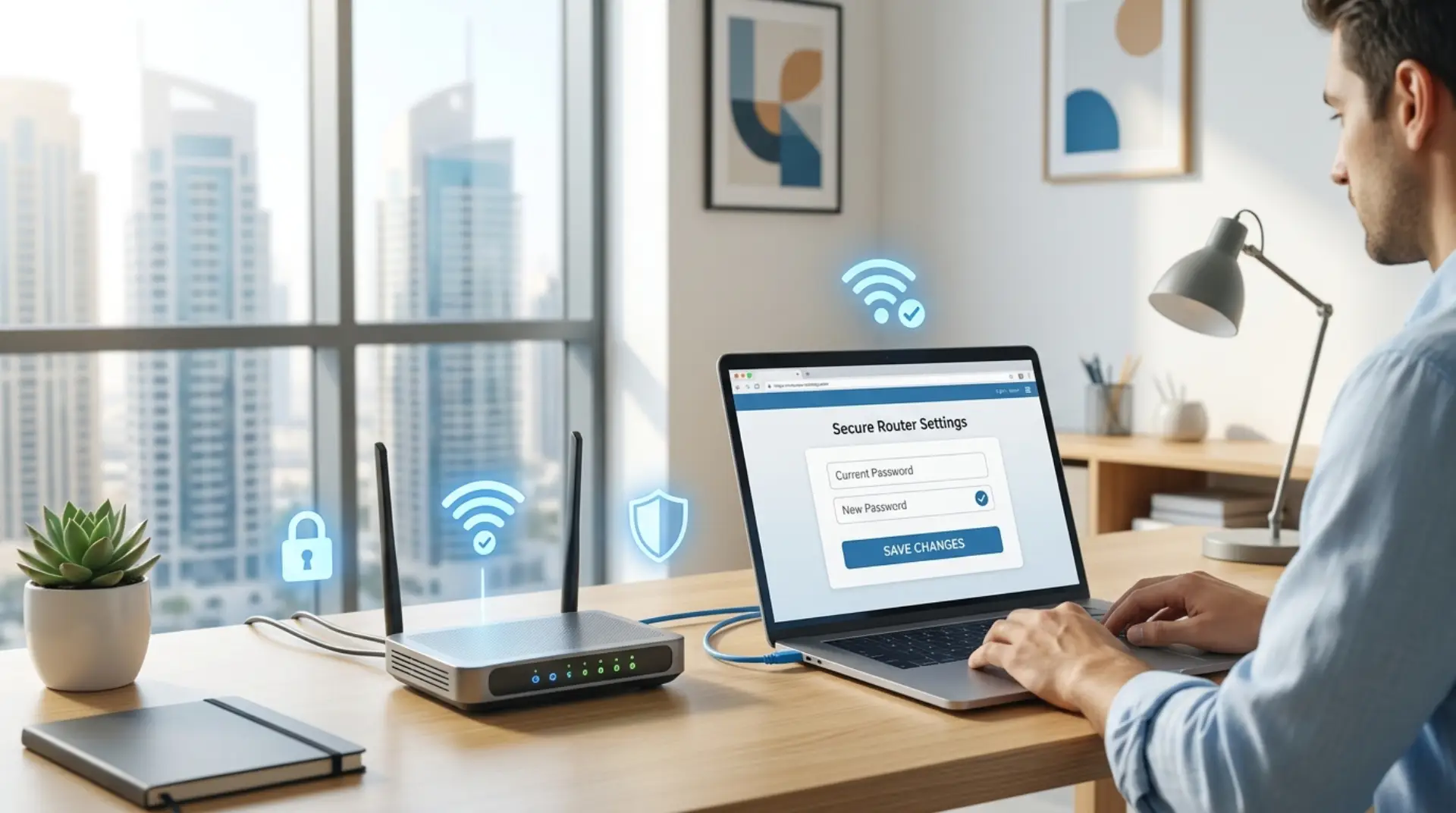
A weak or shared home WiFi password can quietly slow down your internet, expose your connected devices, and make your network harder to control. If your smart TV buffers, your gaming ping jumps, or your office laptop keeps dropping from the network, changing the du wifi password is one of the first safe fixes you should try before assuming the router or connection is faulty.
Why Changing Your WiFi Password Matters
Many homes and small offices in Dubai have used the same WiFi password for years. It may have been shared with visitors, tenants, staff, delivery teams, maintenance workers, or short-term guests. Over time, too many connected devices can consume bandwidth and create network congestion, especially in apartments, villas, cafés, small offices, and shared workspaces.
Changing your password helps you:
- Remove unknown or unwanted devices
- Improve control over internet speed
- Protect phones, laptops, cameras, and smart devices
- Reduce the risk of unauthorized access
- Keep your router settings more secure
It will not magically fix every slow internet issue, but it is a smart first step in network troubleshooting.
Before You Change the Password, Check These Things
Before opening your router settings, take a minute to prepare. This prevents confusion, especially if you work from home or have many smart devices connected.
Write down your current WiFi name, check whether you are connected to the router, and make sure you know the router login details. In many cases, the admin username and password are printed on the router label. However, this is not always the same as your WiFi password.
Also, choose a time when internet disruption will not be a problem. Once the password is changed, all connected devices will disconnect and need to be reconnected manually.
How to Access Your du Router Settings
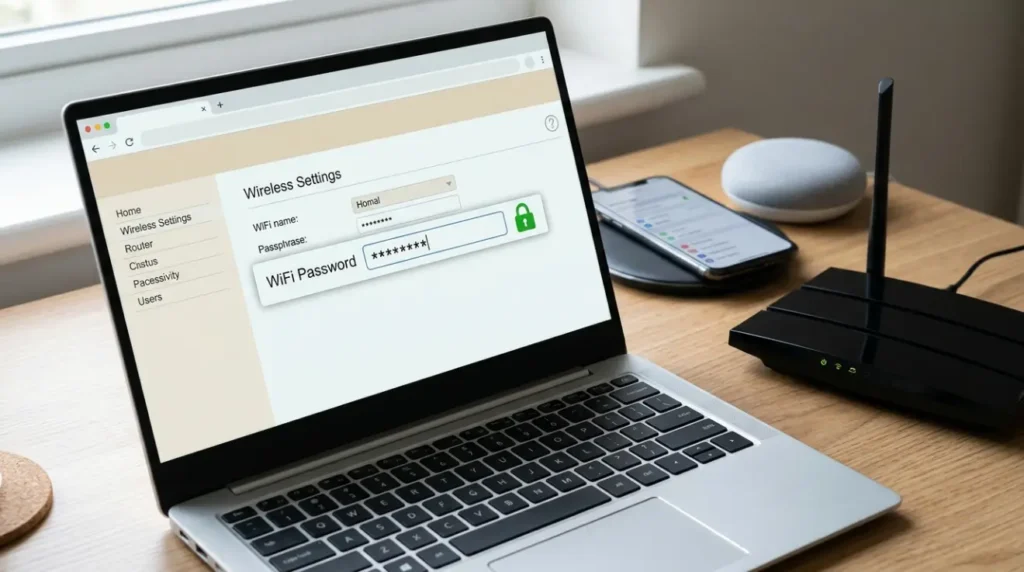
Most routers allow you to change the WiFi password through a browser-based router login page. You need to be connected to the same WiFi network or use a LAN cable connected to the router.
Open a browser on your phone or laptop and enter the router IP address. The exact IP address may vary depending on the router model, so check the device label or the setup guide that came with it. Some common router addresses are similar to 192.168.1.1, but you should rely on the details shown on your specific router.
After the login page opens, enter the router admin username and password. Be careful here: this is the router management login, not the WiFi password used to connect phones and laptops.
Steps to Change the WiFi Password Safely
The menu names may look different depending on whether you have a du Home Wireless router, fibre router, 4G router, 5G router, or mesh system. However, the process usually follows a similar path.
- Log in to the router admin page.
- Look for WiFi, Wireless, WLAN, or Network Settings.
- Open the Security or Password section.
- Select the correct WiFi network name if your router has more than one SSID.
- Enter your new WiFi password.
- Save the changes.
- Wait for the router to refresh or restart.
- Reconnect your devices using the new password.
Official du support for some Home Wireless routers also mentions going to Settings, then Wi-Fi, then Security, selecting the SSID, and saving the new password. For du Home Wireless 5G support, du notes that after saving the new Wi-Fi password, the router refreshes and the new password becomes active.
What Makes a Strong WiFi Password?
A good WiFi password should be hard to guess but easy enough for your household or team to type correctly. Avoid using your name, mobile number, villa number, office name, child’s name, or simple words like “password123”.
A stronger password should include:
- 12 or more characters
- Uppercase and lowercase letters
- Numbers
- A symbol if supported
- No personal information
For example, a password based on a private phrase is usually better than a short random word. Instead of using something like Dubaiwifi123, use a stronger phrase-style password that only your family or team understands.
Should You Change the WiFi Name Too?
Changing the WiFi name is optional, but it can be useful if many people already know your old network. For example, if you moved into a new apartment, replaced a router, changed tenants, or took over an office, renaming the network can make things cleaner.
For home users, use a simple name that does not reveal too much personal information. For small businesses, avoid naming the WiFi after private internal systems. A professional, simple network name is better.
If your router has separate 2.4GHz and 5GHz networks, you may see two WiFi names. The 2.4GHz band often reaches farther, while 5GHz is usually faster at shorter distances. If your home has weak signal areas, this matters.
Reconnect Devices the Right Way
After changing the WiFi password, your devices may still try to connect using the old saved password. This is normal.
On phones, laptops, tablets, and smart TVs, choose “Forget Network” if the device keeps failing to connect. Then select the WiFi again and enter the new password.
Do not forget devices such as:
- Smart TVs
- CCTV cameras
- Printers
- Gaming consoles
- Smart doorbells
- WiFi boosters
- Mesh WiFi nodes
- Smart bulbs and plugs
- Office laptops and POS systems
For small businesses, update staff devices carefully. If you use printers, card machines, or cloud systems, reconnect critical devices first before reconnecting guest phones.
Common Problems After Changing the Password
Sometimes the password change works, but the internet still feels unstable. In that case, the issue may not be the password itself.
Devices Cannot Reconnect
This usually happens because the device saved the old password. Forget the network and reconnect. Also, check whether you changed the password for both 2.4GHz and 5GHz networks.
Internet Becomes Slow Again
If speed drops again after a few hours, check how many devices are connected. Too many active users can affect bandwidth, especially during streaming, gaming, video calls, and file downloads.
Smart Devices Stop Working
Some smart home devices only support 2.4GHz WiFi. If you changed the network name or password only for 5GHz, they may not reconnect properly. Try connecting them to the 2.4GHz network.
Router Login Does Not Open
Make sure you are connected to the router. If you are using mobile data, the router login page will not open. If the IP address still does not work, check the router label or device manual.
Security Settings You Should Check
While changing the WiFi password, it is a good time to review basic security settings.
Look for the encryption type in your router. Encryption is the protection method that helps keep your WiFi traffic secure. If your router supports modern security options, avoid outdated settings. A secure network helps protect your personal devices, work files, and smart home equipment.
Also, check whether WPS is enabled. WPS is convenient, but in some cases, it can make unwanted access easier if someone has physical access to the router. If you do not use it, turning it off may be safer.
Finally, check for firmware updates if your router interface provides that option. Firmware is the router’s internal software. Keeping it updated can improve stability, security, and performance.
When a Password Change Is Not Enough
Changing the WiFi password is helpful, but it will not fix every WiFi issue. If your Dubai villa has thick walls, multiple floors, or a weak signal in bedrooms, the real issue may be coverage. If your apartment has many nearby networks, signal interference may be affecting performance.
For remote workers, gamers, and families, these issues can feel serious. Video calls freeze, online games lag, and streaming apps buffer even when the internet package is active. In these cases, a professional WiFi service can test signal strength, router placement, channel settings, and mesh WiFi performance.
Small businesses should be even more careful. If your office depends on cloud software, POS systems, CCTV, VoIP calls, or guest WiFi, a poor setup can affect daily work. A wifi repair technician can separate guest and staff networks, improve router placement, configure boosters, and handle bandwidth optimization.
Safe DIY vs Professional Help
You can safely change your WiFi password yourself if you can log in to the router and understand the settings. You can also reconnect phones, laptops, and basic smart devices without help.
However, contact a professional if:
- You cannot access the router login
- The router password is forgotten
- Mesh WiFi stops working after changes
- Your internet drops often
- WiFi is weak in several rooms
- Your office network supports business devices
- You need a secure guest WiFi
- Gaming, video calls, or work apps keep lagging
A technician can check whether the issue is password-related, router-related, coverage-related, or caused by connected devices.
Final Safety Tips Before You Finish
After changing your WiFi password, store it somewhere secure. Do not share it in public WhatsApp groups, printed signs, or with people who do not need long-term access. For offices, consider creating a separate guest network instead of sharing the main business WiFi password.
Also, avoid changing too many router settings at once. If something goes wrong, it becomes harder to know what caused the problem. Change the password first, test the connection, reconnect devices, and then adjust advanced settings only if needed.
A secure WiFi setup is not just about speed. It is about control, privacy, and keeping your home or business connected without unnecessary risk.
FAQs
How do I change my du WiFi password?
Log in to your router admin page while connected to your WiFi network. Open the WiFi or Wireless settings, find the security/password section, enter a new password, and save the changes. Your devices will need to reconnect with the new password.
What is the difference between router password and WiFi password?
The router password lets you log in to the router settings page. The WiFi password lets phones, laptops, and other devices connect to the internet. They are different, and changing one does not always change the other.
Why did all my devices disconnect after changing the password?
This is normal. Your devices were saved with the old WiFi password. After the change, each device must reconnect using the new password. If a device fails, forget the network and connect again.
Can changing my WiFi password improve internet speed?
It can help if unknown users or too many devices were using your network. However, if the problem is weak signal, router placement, interference, or poor coverage, you may also need network troubleshooting or a WiFi booster.
What should I do if I forgot my router login details?
Check the label on the router first. If the login was changed and forgotten, you may need to reset the router. Be careful because a factory reset can erase custom settings and may require full setup again.
Should I use the same password for 2.4 GHz and 5 GHz WiFi?
You can use the same password for convenience. However, if you manage many devices, separate names can make troubleshooting easier. Some smart devices work better on 2.4GHz, while newer phones and laptops may perform better on 5GHz.
How often should I change my WiFi password?
For homes, changing it every few months or after sharing it with many people is a good habit. For small businesses, change it whenever staff leave, tenants change, or you suspect unknown devices are connected.
When should I call a WiFi repair technician?
Call a technician if the router login does not work, the mesh WiFi fails, internet drops often, or weak signal continues after changing the password. Professional support is also useful for offices, villas, gaming setups, and smart home networks.
Leave a Reply