
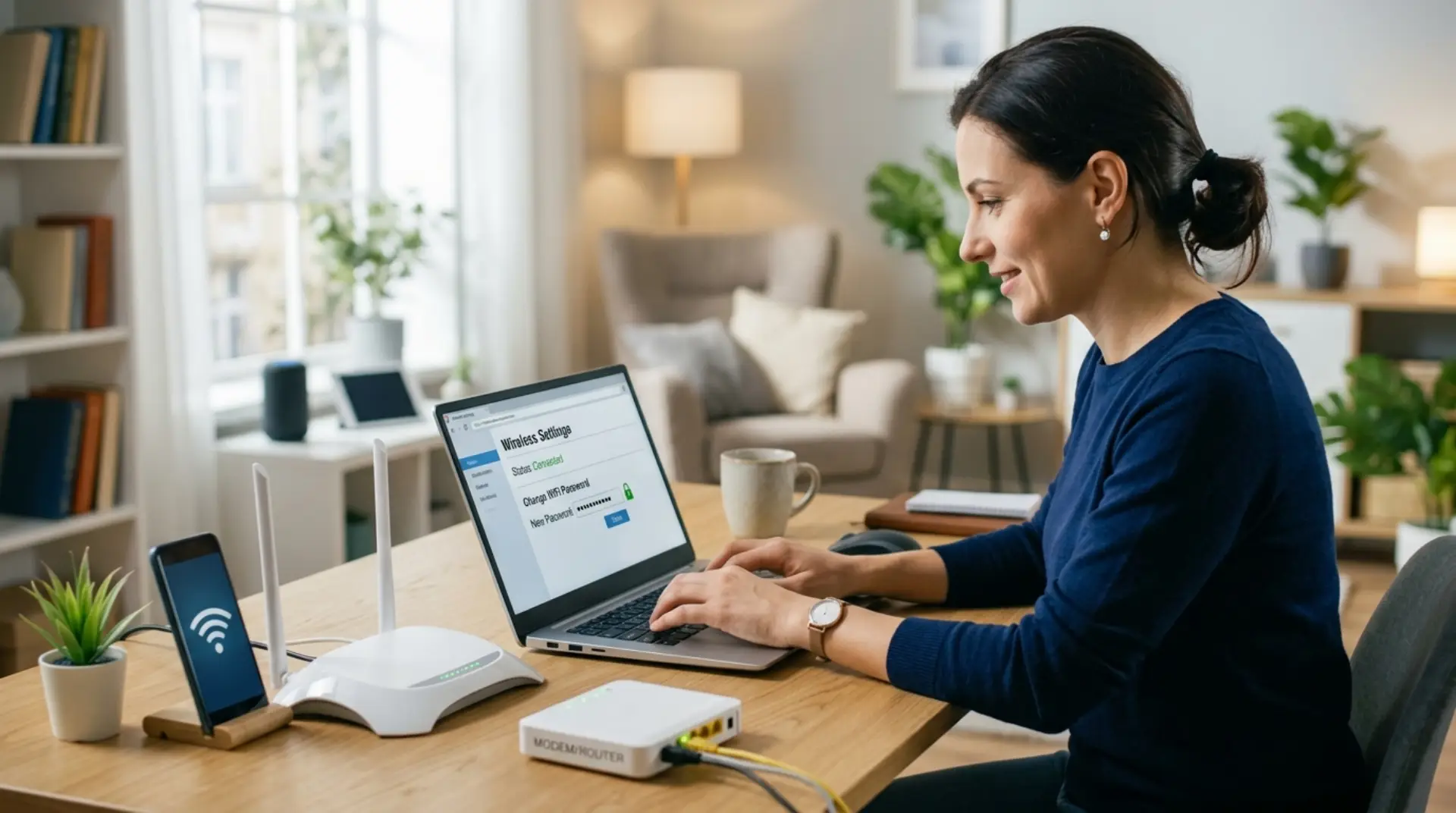
A weak or shared WiFi password can slow down your connection, expose your devices, and make your home or office network less secure. If too many people know your Etisalat password, changing it safely is one of the quickest ways to protect your internet, reduce unwanted access, and keep your WiFi service running smoothly.
For many home users and small businesses, the problem is not just “how to change the password.” The real concern is doing it without disconnecting important devices, losing router access, or making settings that affect internet speed. This guide explains the safe way to update your WiFi password, what to check before making changes, and when to call a wifi repair technician for support.
Why You Should Change Your Etisalat WiFi Password
Your WiFi password is the first layer of protection for your network. When it is weak, old, or shared with too many people, your connection can become less reliable. Unknown users may connect to your network and use your bandwidth, which can affect video calls, online classes, streaming, business systems, and smart devices.
Changing your WiFi password is especially important if:
- You gave the password to guests, tenants, staff, or neighbors
- Your internet feels slower than usual
- Devices disconnect often without a clear reason
- You recently moved into a new home or office
- Your router still uses the default WiFi name or key
- You suspect someone else is using your connection
In small businesses, this matters even more. A shared network may include POS systems, office laptops, printers, CCTV cameras, and customer devices. Therefore, a secure password helps reduce unwanted access and supports better network troubleshooting later.
Before You Change the WiFi Password
Before logging into your router, take a few minutes to prepare. This can save you from unnecessary downtime.
First, make sure you are connected to your Etisalat home or office network. It is better to use a laptop connected by LAN cable if possible, because changing WiFi settings may disconnect wireless devices during the process.
Second, check your router label. Many routers have the default WiFi name, wireless key, router IP address, and admin login details printed on the back or bottom. However, if the login details were changed before, the default details may no longer work.
Third, list the devices you will need to reconnect after the change. These may include:
- Phones, laptops, and tablets
- Smart TVs and streaming devices
- Printers and security cameras
- WiFi boosters or mesh nodes
- Smart home devices
- Office computers and payment devices
This step is useful because some devices do not reconnect automatically after the WiFi password is changed.
Change Etisalat WiFi Password from Router Settings
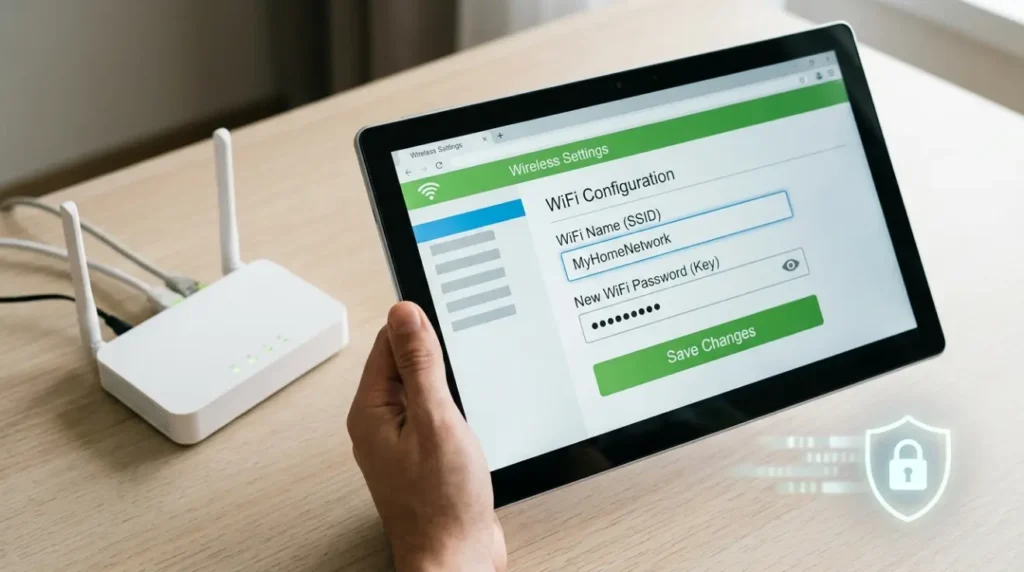
Most Etisalat routers allow you to change WiFi settings through the router’s web page. Some Etisalat support guides show router access through local IP addresses such as 192.168.1.1, while certain router models may use a different address, such as 192.168.2.1.
Step 1: Connect to Your Network
Connect your phone, laptop, or desktop to your Etisalat WiFi. For a safer setup, use a LAN cable from your computer to the router. This prevents the connection from dropping while you save the new password.
Step 2: Open the Router Login Page
Open Chrome, Safari, Edge, or any browser. In the address bar, type:
192.168.1.1
If that does not open the router page, try checking the router sticker or your device’s network gateway address. Some router models use a different local address depending on the setup.
Step 3: Log In to the Router
Enter the router admin username and password. On some older Etisalat router guides, the admin password is shown as “admin,” but login details can vary by router model and may have been changed by the user or technician.
Do not confuse the router admin password with your WiFi password. The admin password opens router settings, while the WiFi password connects your devices to the network.
Step 4: Go to WiFi or Wireless Settings
After login, look for a section named:
- WiFi
- Wireless
- WLAN Settings
- Wireless Security
- 2.4 GHz / 5 GHz Settings
- SSID Settings
Etisalat’s eLife Home Portal guide also notes that users can change WiFi settings for both 2.4 GHz and 5 GHz networks from the Wi-Fi tab.
Step 5: Change the WiFi Password
Find the field called password, network key, pre-shared key, security key, or WPA key. Enter your new WiFi password.
A strong password should be at least 12 characters and should include a mix of uppercase letters, lowercase letters, numbers, and symbols. Avoid using names, mobile numbers, building names, birthdays, or simple words like “password123.”
Example format:
StrongHome@2026Net
Do not copy this exact example. Use your own unique version.
Step 6: Save and Reconnect Devices
Click Apply, Save, or Save Settings. Your WiFi may disconnect for a short time. After that, reconnect your devices using the new WiFi password.
If you have both 2.4 GHz and 5 GHz networks, update the password on both if needed. Some routers allow you to keep the same password for both bands, while others require separate changes.
Choosing a Safe WiFi Password
A safe WiFi password should be easy for you to remember but hard for others to guess. Many users make the mistake of choosing short passwords because they are easier to type on smart TVs or guest phones. However, weak passwords can put the whole network at risk.
Use this simple rule: choose a phrase that feels personal to your home or business but does not reveal private information.
Good password habits include:
- Use 12–16 characters or more
- Mix letters, numbers, and symbols
- Avoid your name, phone number, or address
- Avoid common words like “internet,” “wifi,” or “etisalat.”
- Do not reuse passwords from email or banking accounts
- Change it after staff changes, tenant changes, or office moves
For small businesses, it is also smart to create a guest network. This keeps customer or visitor devices separate from office laptops, printers, and internal systems.
Should You Change the WiFi Name Too?
Changing the WiFi name, also called SSID, is optional. However, it can help if your current network name is confusing or still shows the default router model.
For example, instead of using a random router name, you can choose a simple name like “Office-WiFi” or “HomeNet-5G.” Avoid adding sensitive details such as your flat number, company department, or personal name.
If you use WiFi boosters or mesh devices, make sure the WiFi name is consistent across the setup unless you want separate networks. A mismatch can cause roaming problems, where your phone or laptop stays connected to a weaker signal instead of switching to a stronger one.
Common Problems After Changing the WiFi Password
Changing the password is simple, but some issues can appear afterward. Most of them are easy to fix.
Devices Still Try to Use the Old Password
If your phone or laptop keeps failing to connect, forget the WiFi network and reconnect manually. On most devices, go to WiFi settings, select the network, choose “Forget,” and then enter the new password.
Smart Devices Do Not Reconnect
Smart TVs, CCTV cameras, printers, and smart plugs often need manual setup after a password change. Open the device app or settings menu and update the WiFi details there.
WiFi Booster Stops Working
A wifi booster repeats your existing WiFi network. If the router password changes, the booster may still be trying to connect with the old password. Reset or reconfigure the booster using its app or setup page.
Internet Becomes Slow After Password Change
The password change itself does not usually slow down the internet. However, if devices reconnect to the wrong band, your speed may feel different. For better performance, use 5 GHz for nearby devices and 2.4 GHz for longer range.
If you are still facing weak signals, you may need wifi signal increase solutions such as better router placement, a mesh system, or professional network troubleshooting.
Security Settings You Should Check
While changing the password, check the WiFi security mode. Choose WPA2 or WPA3 if available. Avoid older security options such as WEP because they are outdated and easier to break.
Also, check whether WPS is enabled. WPS can make device connection easier, but it may reduce security in some cases. For a safer home or business network, turn it off unless you really need it.
In addition, update the router admin password if it is still using the default login. This is different from the WiFi password. If someone can access the router admin panel, they can change your network settings, view connected devices, or create connection issues.
Call a WiFi Repair Technician
You may not need a technician just to change a password. However, expert help is useful when the issue is bigger than login settings.
Call a wifi repair technician if:
- You cannot access the router page
- The admin login does not work
- Internet drops after changing settings
- Your router, ONT, and mesh system are not synced
- Office devices stop connecting
- WiFi coverage is weak in several rooms
- You need guest WiFi or business network separation
A technician can also check latency, signal strength, router placement, and bandwidth optimization. These checks are helpful when your internet works, but the experience still feels slow during calls, browsing, or streaming.
Best Practices for Home and Small Business WiFi
Once your new password is working, keep your network organized. Do not share the main password with everyone. For visitors, create a guest network if your router supports it.
Place the router in an open area, away from thick walls, metal cabinets, cordless phones, and microwaves. If your space is large, a single router may not be enough. In that case, a mesh WiFi system often performs better than a basic extender.
For businesses, review connected devices every month. Remove unknown devices and update the password when employees leave. This simple habit can prevent future security and speed problems.
Final Thoughts
Changing your Etisalat WiFi password safely is a small step that can make a big difference. It protects your network, removes unwanted users, and gives you better control over connected devices.
The key is to prepare first, use the correct router login page, choose a strong password, and reconnect devices carefully. If the problem continues after the password change, the issue may be related to router placement, signal coverage, interference, or a deeper network fault.
FAQs
How do I change my Etisalat WiFi password?
Connect to your Etisalat network, open your router page in a browser, and log in with the admin details. Go to WiFi or Wireless settings, enter a new password, and save the changes. After saving, reconnect your devices with the new password.
What is the default Etisalat router IP address?
Many Etisalat router setups use 192.168.1.1 as the router login address. However, some router models may use a different IP address. Check the sticker on your router or your device’s gateway settings if the page does not open.
What should I do if the router login password does not work?
First, check the router label for default login details. If those do not work, the admin password may have been changed before. In that case, contact your internet provider or a qualified technician before resetting the router.
Will changing my WiFi password disconnect all devices?
Yes, devices connected through WiFi will usually disconnect after the password is changed. You will need to reconnect phones, laptops, smart TVs, cameras, printers, and WiFi boosters using the new password.
What is a strong WiFi password?
A strong WiFi password is at least 12 characters long and includes uppercase letters, lowercase letters, numbers, and symbols. Avoid names, phone numbers, birthdays, and simple words. Use a unique password that is not used for other accounts.
Should I use the same password for 2.4 GHz and 5 GHz WiFi?
You can use the same password for both bands for easier connection. The 2.4 GHz band gives better range, while 5 GHz usually gives better speed nearby. If your router shows both networks separately, update both passwords if needed.
Why is my internet slow even after changing the WiFi password?
Slow internet may be caused by a weak signal, router placement, interference, too many connected devices, or service issues. Changing the password removes unwanted users, but it does not fix every speed problem. Proper network troubleshooting may be needed.
Can a WiFi booster improve Etisalat’s internet coverage?
A WiFi booster can help extend coverage in weak areas, but placement matters. If the booster is too far from the router, it may repeat a weak signal. For larger homes or offices, a mesh WiFi system may provide better coverage and stability.
Leave a Reply